

SpaceTime Project Basics
Adding Objects to the Project
To create a custom library of astronomical objects needed for the current project:
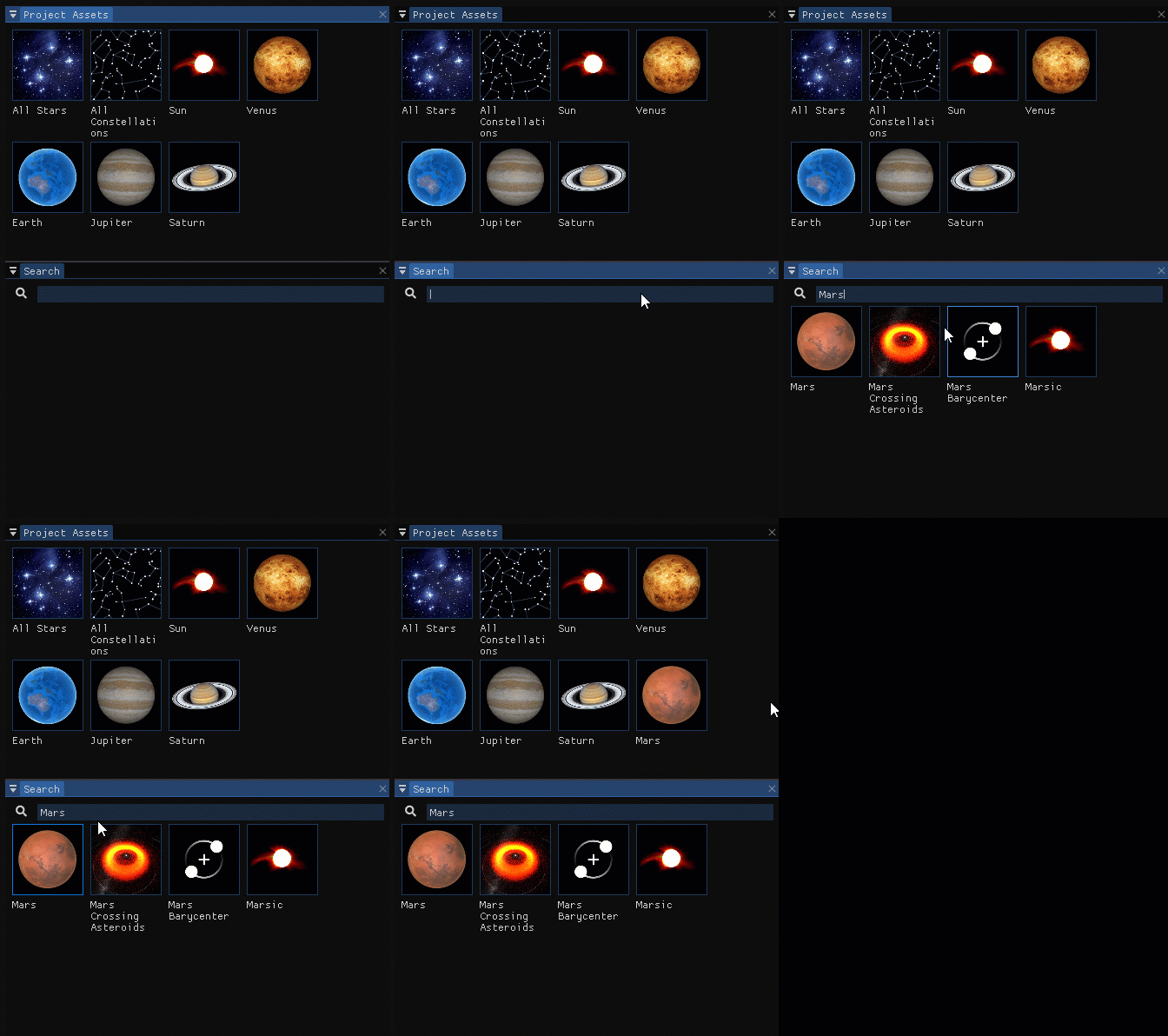
- Open the Search panel and start typing the object name in the search field (see Addendum 1 for the List of datasets and objects). Any matching objects are displayed in the list that appears below.
- Drag and drop the required object from the Search panel to the Project Assets panel.
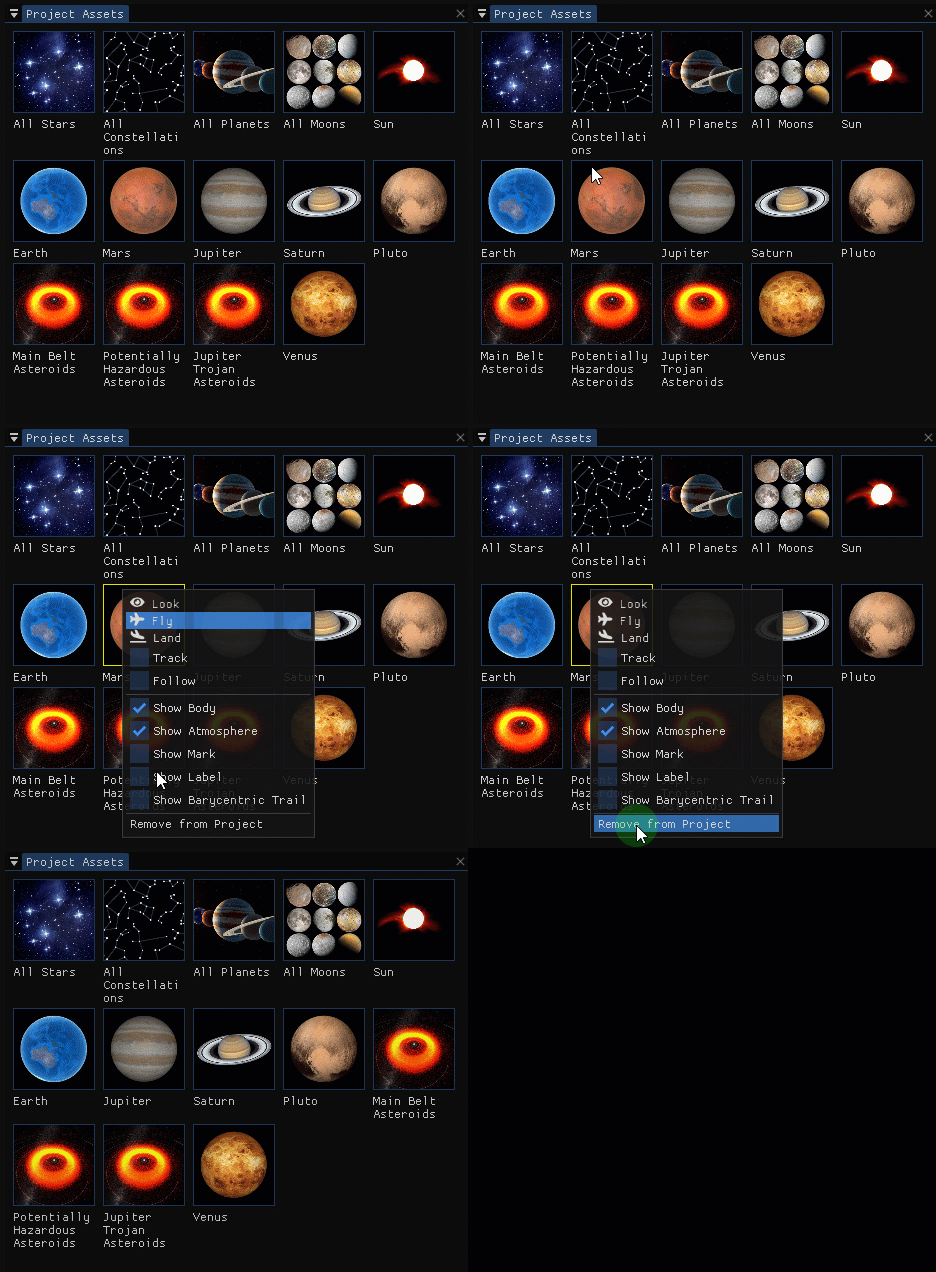
To remove an object from the Project Assets panel, right-click on an object and select Remove from Project from the dropdown menu.
Basic Navigation
To fly to an astronomical object, drag and drop it from the Project Assets or Search panels to the Dome View window.
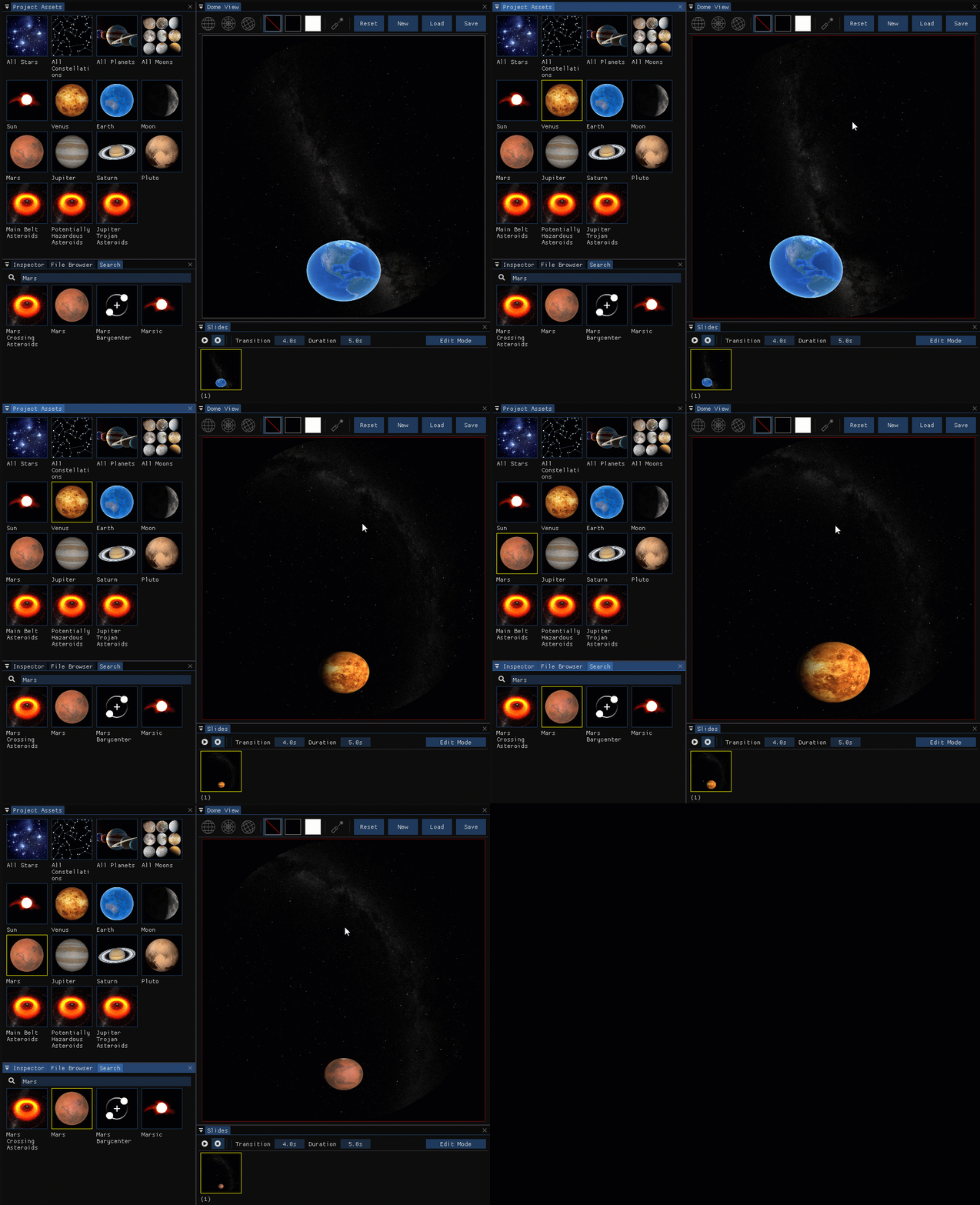
To further adjust the view of the astronomical object in the slide, you can do the following:
- Rotate the camera view around the center of the astronomical object by holding down the right mouse button and dragging the mouse in the Dome View
- Shift the camera view by holding down the left mouse button and dragging the mouse in the Dome View*
- Rotate the whole slide view clockwise by holding the Q
- Rotate the whole slide view counterclockwise by holding the E
- Move the camera toward the object by holding the W**
- Move the camera away from the object by holding the S **
- Move the camera left by holding the A**
- Move the camera right by holding the D**
- Move the camera up by holding the R**
- Move the camera down by holding the F**
*When we select the option to Track the object, the control is not available because the camera stays centered on the object.
**We can control the speed of these movements by scrolling the mouse wheel forward to speed up, and backward to slow down.