

SpaceTime 2. General Information
Overview
SpaceTime 2 is an integrated Screenberry module for scientifically correct three-dimensional astronomical visualization and simulation. For planetarium domes, it provides the exceptionally high-quality rendering of celestial objects and allows the easy creation of real-time astronomical presentations and virtual tours to any point in space and time throughout the Universe.
Accessing SpaceTime
SpaceTime is added to the Screenberry node graph as a node but operated mostly by using a specialized widget added by selecting Window > SpaceTime from the main menu.
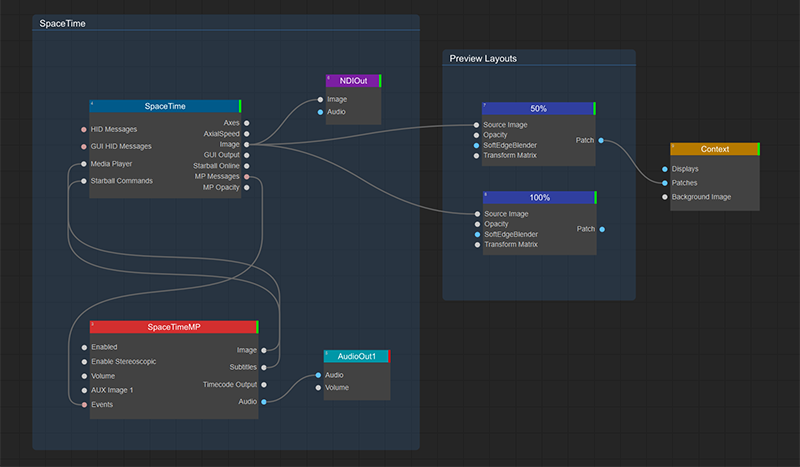
Example of a node graph with the SpaceTime node
Note:
SpaceTime requires a separate license (hosted on Screenbery HASP dongle). To obtain a license, please contact our sales representative at fulldome@frontpictures.com.
User Interface
Thanks to a simple, user-friendly interface, working with SpaceTime is easy and intuitive.
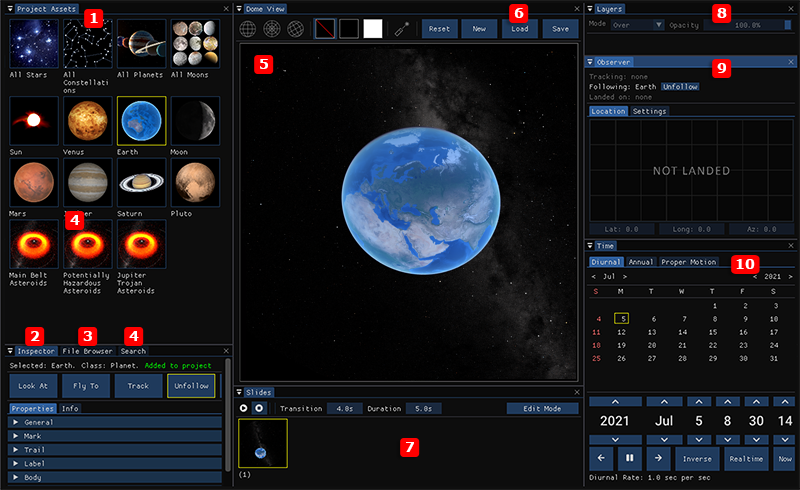
- Project Assets is the selection of astronomical objects required for a current SpaceTime project.
- The Inspector tab provides advanced settings for an item currently selected in the Project Assets panel.
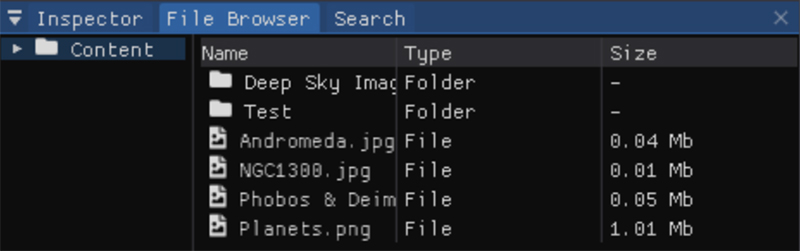
- The File Browser tab allows you to select media files (e.g., image files) to be added to the presentation.
- The Search tab allows you to search the extensive SpaceTime collection of astronomical objects by name and add them to the Project Assets.

- The Dome View window shows the current fulldome image and contains display parameters.
- The Project menu allows you to create, load, and save a SpaceTime project file.
- The Slides panel displays a sequence of slides currently defined by a user, providing slide management and presentation controls.
- The Layers panel allows you to control how media is displayed in the slide of your presentation.
- The Observer window shows the current astronomical object being tracked and followed, as well as landing status, and provides additional settings.
- The Time panel provides date and time selection, controls for the flow of time.
The SpaceTime‘s interface can be rearranged and customized to meet the specific user requirements.
Workflow
The SpaceTime workflow is simple and intuitive. The astronomical objects needed for a project are found using the Search window and added to the Project Assets panel. From there, they can be drag-and-dropped to the Dome View window to define the current slide’s view.
Every new project has one initial slide by default. The current view of the slide is shown in the Dome View window.
The user can change the view of the slide to any time and location in the universe as well as make adjustments by positioning the camera (changing the observation point) as needed, adding media to the slide to enhance the presentation, and modifying various visual parameters.
The user is provided with flexible options to either
- Create and run a presentation as a sequence of slides with defined views.
- Continuously change the view of the slide to experience free astronomical exploration.
- Combine both approaches and while presenting, pause at any slide and use it as a starting point for further exploration to support the presentation narrative.
The presentation is created and run as a sequence of slides. Each slide represents a unique observation state, and as the presentation runs, the view smoothly transitions from the current slide to the next.